LiveSub
Real-Time Subtitle Translation System
Choose the language you want your subtitles to be translated into.
Choose the translation engine:
- LS Translate: Free but may have lower speed and accuracy.
- DeepL: Faster and more accurate. Requires an API key.
If you select DeepL, you must obtain an API key from https://www.deepl.com/ and enter it in the API field. If you choose LS Translate, you can leave the API field empty.
Enter the font size for the translated subtitles and click the Start button.
Adjust the Scan Window to fully cover your subtitles. Once you are done, click the Next button.
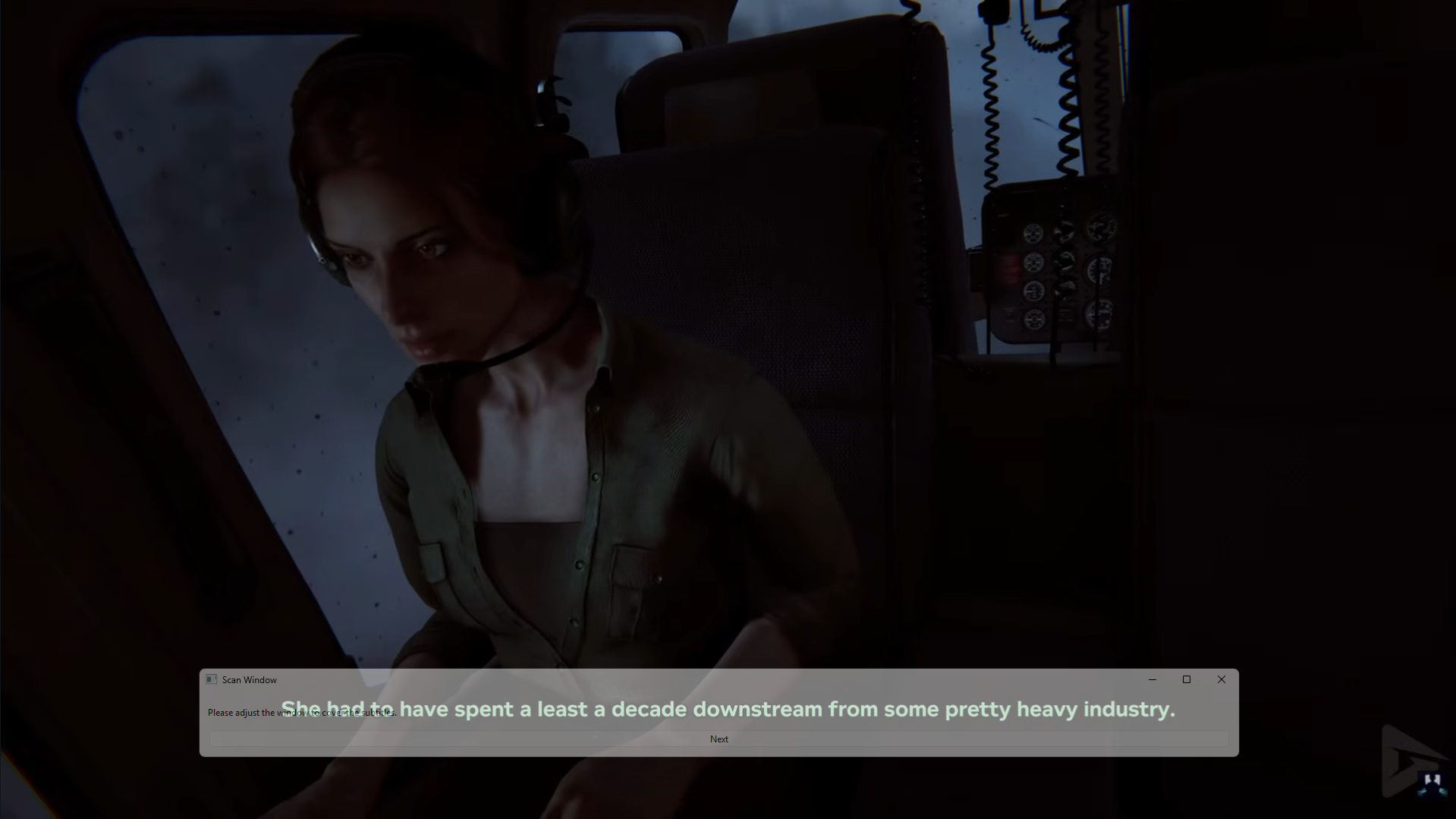
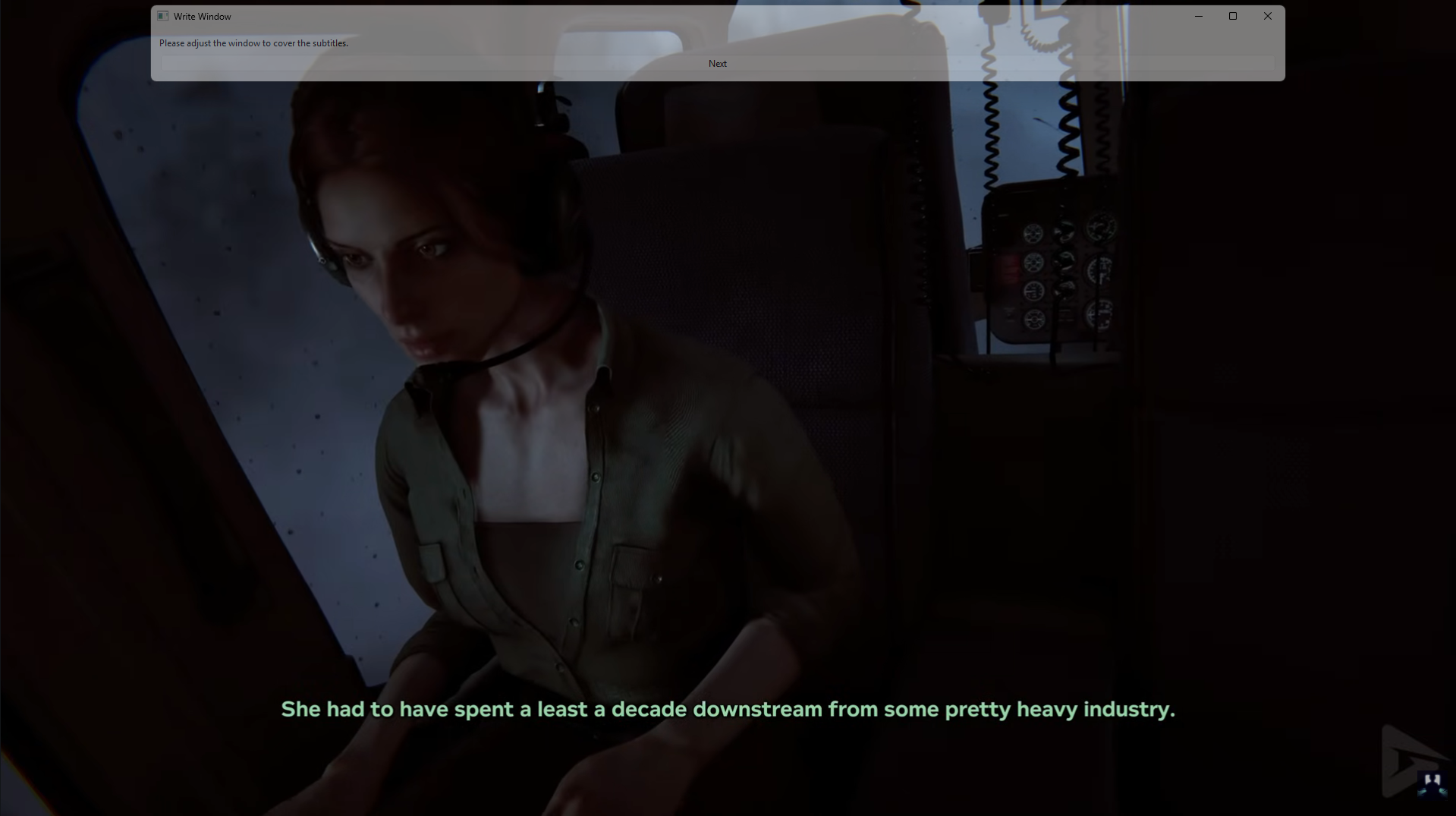
Position the Write Window where you want the translated subtitles to appear. Then click Next.
Note: The important thing here is that the boundaries of the Write Window do not overlap with those of the Scan Window.
Enjoy using the application. To close LiveSub, simply close the LiveSub application window running on your computer. Closing the browser tab will not stop the application.